
Guides
Every action in the app, a minute each. In the app, tap the book icon to see them again.
Start a board
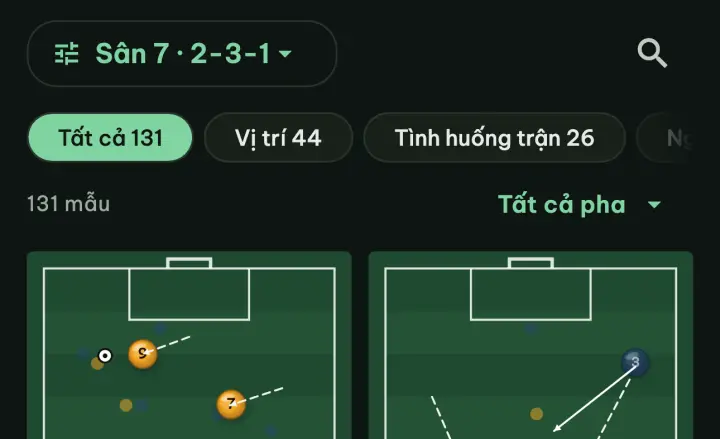
- Open the app and pick a 5-, 7- or 11-a-side pitch.
- Choose a ready formation (e.g. 2-3-1, 4-4-2) or a situation template by position.
- A new board opens in Place mode: drag players, the ball and equipment to their starting spots.
Draw runs, passes and dribbles
- Pick Draw in the toolbar.
- Drag from a player: an off-the-ball run (yellow dashed line).
- From the ball carrier to a teammate: a pass (solid white); into space: a dribble (orange zigzag).
- Nearly straight lines snap straight; to curve one, tap it and drag the round handle in the middle.

Add steps and preview
- Each wave of movement is a step. Tap + next to the step strip; everyone stays where they are so you can keep drawing.
- Drawing again for a player who already moved in this step adds a new step automatically.
- Tap Preview to animate from step 1; change speed 0.5× · 1× · 2×, turn on Loop.

Edit or delete a line
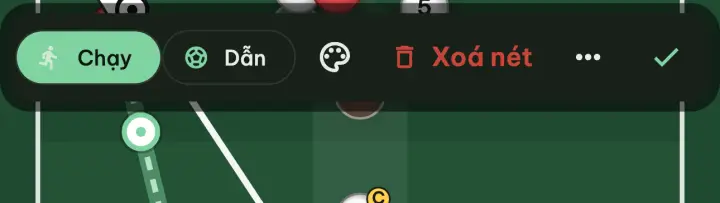
- Tap a line: it lights up with an edit bar.
- Switch Run · Dribble (ball lines: Pass · Shot), colour, width; or Delete.
- Undo with ↶ or Cmd+Z / Ctrl+Z. Every change saves automatically.
Present and share with the team
- Tap Present for full screen; move between steps with ← → or a tap.
- Export image or PDF to print, GIF / MP4 for the team chat.
- On a computer, files go to your Downloads folder.
Video talks
- Open the Video tab and pick a match clip (up to 60 seconds after trimming).
- Drag the timeline to the moment you want to explain and choose "Freeze here to draw".
- Draw arrows, zones, text and spotlights on the frozen frame; record a voice-over if you like.
- Preview, then export MP4 for the team.

Board from a photo
- Draw the board on paper or a whiteboard and shoot straight down with all four touchlines in view.
- In the app choose Board from photo, pick the pitch size and Read photo (about 25 seconds, one AI use).
- Compare with the original photo, fix anything the AI was unsure of, then Use this board.